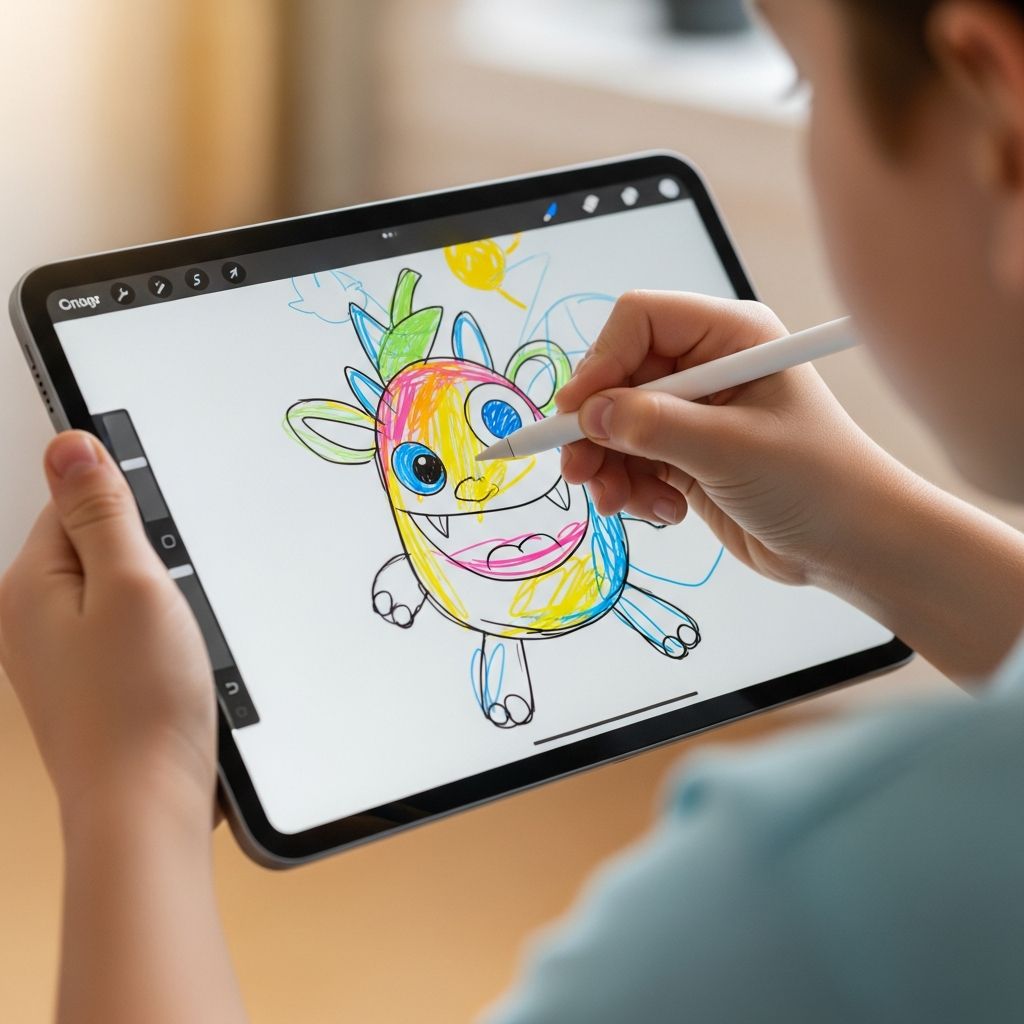
Tablets do not have to be just for videos and games; they can also be powerful sketchbooks for kids who love to draw, scribble, and color. Thoughtfully chosen iPad drawing apps can help children explore color, shape, and storytelling in ways that feel like play but build real creative skills.
Why Drawing Apps Belong in a Child’s Toolkit
Digital drawing does not replace crayons and paper, but it adds new possibilities that are hard to ignore. For many families, an iPad becomes a portable art studio that keeps kids busy in restaurants, cars, or waiting rooms without hauling a bag of supplies.
- Unlimited materials: Kids can switch from crayons to paint to markers instantly, without spills or dried-out pens.
- Easy do-overs: The undo button makes it less scary to experiment because mistakes are reversible.
- Portable gallery: Artwork can be saved, shared, and revisited, which helps children see their progress over time.
Most importantly, drawing apps encourage experimentation. Children can try bold colors, unusual textures, and new tools in seconds, nurturing curiosity and confidence.
What Makes a Great Kids’ Drawing App?
Not every drawing app marketed to kids is truly child-friendly or educational. Before tapping “download,” it helps to know what separates a toy that will be ignored in a week from a tool your child will return to again and again.
- Simple, intuitive interface: Young children should be able to find colors and tools without reading labels or navigating cluttered menus.
- Age-appropriate features: A toddler app might focus on tapping and simple coloring, while older kids may want layers, stickers, and more precise brushes.
- Safe environment: Ideally, there are no unfiltered social features or open chats, and parental controls keep kids away from unintended purchases.
- Offline usability: Apps that work without a constant internet connection are safer and more practical on the go.
Spending a few minutes exploring an app yourself before handing it to your child can prevent confusion and frustration later.
Age-by-Age: Matching Apps to Your Child
Children use drawing tools differently at different stages. An app that delights a three-year-old may bore a nine-year-old, and a sophisticated art program may overwhelm a preschooler. Thinking in age bands helps narrow the options.
| Age range | Main goals | Ideal app style |
|---|---|---|
| Toddlers (2–3) | Cause-and-effect, color exploration, large movements | Very simple tap-and-draw, thick lines, minimal menus |
| Preschool (4–5) | Shape recognition, basic drawing, storytelling | Coloring pages, guided drawing prompts, fun sound effects |
| Early elementary (6–8) | Control, planning pictures, mixing tools | Free-draw canvases, more brush types, simple layers or stickers |
| Older kids (9+) | Skill-building, design thinking, personal projects | Feature-rich apps, layers, export options for printing or sharing |
This kind of progression lets kids grow from “tap anywhere to make a mark” to building full compositions with backgrounds, characters, and text.
Types of Drawing Experiences Kids Enjoy
When browsing app stores, it helps to know that not all “drawing” apps aim for the same experience. Some mimic paper, while others add creative twists you can only achieve on a screen.
Free-Draw Studios
These apps give kids a blank canvas and a toolbox of colors and brushes. They are perfect for children who like to invent their own characters and scenes.
- Look for customizable brushes, erasers, and a simple color picker.
- Saving and exporting drawings is key if you plan to print or share their artwork.
Coloring and Tracing Apps
Coloring apps offer pre-made line drawings that children can fill in by tapping or dragging. This can be calming and easier for kids who feel intimidated by a blank page.
- Features like “stay inside the lines” can help younger kids feel successful.
- Tracing outlines or letters adds a light educational layer without feeling like homework.
Prompt-Based and Storytelling Apps
Some apps spark ideas by asking kids to complete a picture or answer a visual question with their drawing. For example, the app might show a shopping cart and ask what belongs inside it.
- Prompts stretch imagination and encourage kids to explain their choices.
- Recording audio while drawing can turn pictures into mini-stories or narrated shows.
Pattern, Symmetry, and Kaleidoscope Apps
Pattern apps mirror each stroke to create symmetrical or kaleidoscope-like designs. This is especially appealing to children who love bright colors and repetitive patterns.
- Great for quick, satisfying results even if a child does not think of themselves as “good at drawing.”
- Useful for exploring ideas like symmetry and rotation in a playful way.
Key Features to Check Before Downloading
Every family has different priorities, but a few practical details can make the difference between a beloved creative tool and an app that gathers digital dust.
- Child-friendly menus: Clear icons and large buttons help kids manage tools without constantly asking for help.
- Undo and redo: Multiple undo steps encourage risk-taking and experimentation.
- Layer support (for older kids): Being able to separate background and characters teaches planning and composition.
- Stickers and stamps: These can jump-start ideas, especially for children who struggle to draw objects from scratch.
- Color controls: Simple palettes work better for younger kids; advanced sliders and custom palettes suit tweens.
Before your child dives in, open the settings or parent section to see whether you can limit sharing, ads, or purchases.
Managing In-App Purchases and Ads
Even drawing apps can include pop-up ads, locked tools, or subscription offers that interrupt your child’s creative flow. A few precautions can keep the focus on art instead of shopping.
- Prefer ad-free or paid versions when possible, especially for younger children.
- Disable in-app purchases at the device level or require a password for every transaction.
- Explain to older kids which buttons are for drawing and which are for buying so they learn to navigate responsibly.
Reading reviews from other parents can offer clues about whether an app’s business model feels fair or overly pushy.
Blending Digital Drawing With Real-World Art
Screen-based art does not have to live only on screens. Many families use drawing apps to plan or extend hands-on projects at home or in the classroom.
- Print their favorites: Turn digital artwork into postcards, stickers, or framed prints so children see their work in the real world.
- Sketch digitally, build physically: Kids can design costumes, Lego structures, or room layouts on the iPad and then build them.
- Combine mediums: Photograph a painting or clay sculpture, then let your child add digital highlights or backgrounds.
This back-and-forth between screen and table keeps creativity grounded and reduces the feeling that the iPad is the only place to be imaginative.
Healthy Screen Time for Young Artists
Even when screen time is creative, it still needs boundaries. Drawing for three hours straight on a tablet is no better for posture and eyes than three hours of videos.
- Set clear time limits that fit your family’s routine, such as one art session after school.
- Encourage regular breaks to stretch fingers, rest eyes, and move around.
- Mix digital drawing days with traditional art days so kids experience both.
It can help to treat the iPad as one tool on the art shelf, rather than the default activity whenever a child is bored.
Tips for Getting Started With Your Child
Introducing a drawing app can be a shared experience rather than handing the tablet over and hoping for the best. A short, playful tour helps children focus on creating instead of poking at random icons.
- Open the app together and point out the basics: colors, drawing tools, eraser, and save button.
- Create the first picture side by side, narrating your choices (“Now I’m choosing a thicker brush for the sky”).
- Ask your child what they want to draw instead of telling them what to make.
- Show them how to undo, redo, and change colors so they feel in control.
After a few sessions, most kids find their own rhythm, and you can step back while still celebrating their creations.
Ideas for Fun Drawing Challenges
Once your child is comfortable with the app, little challenges can keep them interested and gently stretch their abilities. These can be casual prompts you offer on a weekend afternoon or part of a regular “art time” ritual.
- Color of the day: Ask them to create a picture that uses mostly one color and talk about how it changes the mood.
- Finish the shape: Draw a random shape and challenge your child to turn it into an animal, vehicle, or monster.
- Before and after: Have them draw a scene, then draw what happens next in a second picture.
- Family portraits: Let them create a gallery of relatives or pets, using stickers and patterns for clothing and fur.
These informal prompts build storytelling and problem-solving, not just fine motor skills.
Saving, Sharing, and Organizing Artwork
As your child produces more digital art, it becomes important to decide what to keep and how to store it. A little organization helps avoid clutter and lets you revisit favorite pieces easily.
- Create folders by year, age, or theme so you can watch your child’s style evolve.
- Choose a limited number of “star” pieces each month to print or display.
- Talk with older kids about where and with whom they share their art to support healthy online habits.
Having a digital collection can also be a confidence boost when children see the volume of work they have created.
Frequently Asked Questions
Are drawing apps suitable for very young children?
Yes, as long as the app is designed with toddlers in mind and uses big, simple buttons and minimal text. For this age group, focus on apps that respond instantly to taps and swipes and avoid any complex menus or social features.
Do kids need a stylus or is a finger enough?
Fingers work well for most preschool and early elementary kids, especially in apps with large brushes and forgiving controls. A basic stylus can help older children who want more precision or are practicing handwriting, but it is not essential for casual doodling.
How much time should my child spend drawing on an iPad?
Creative screen activities are generally more beneficial than passive ones, but they still require limits. Consider balancing digital drawing with offline play, and use time-based or situational rules that fit your household, such as allowing creative apps after homework but before TV.
Can digital art really build “real” art skills?
Many of the same fundamentals apply whether children draw on paper or glass: they are still choosing colors, planning compositions, and practicing hand-eye coordination. The advantage of digital tools is that kids can experiment quickly and repeat a technique without wasting paper or supplies.
What should I watch out for when my child uses a drawing app?
Keep an eye on pop-up ads, in-app stores, and any options to post artwork publicly. It is a good habit to explore settings together and talk about which features are acceptable so your child learns to use creative tools thoughtfully.