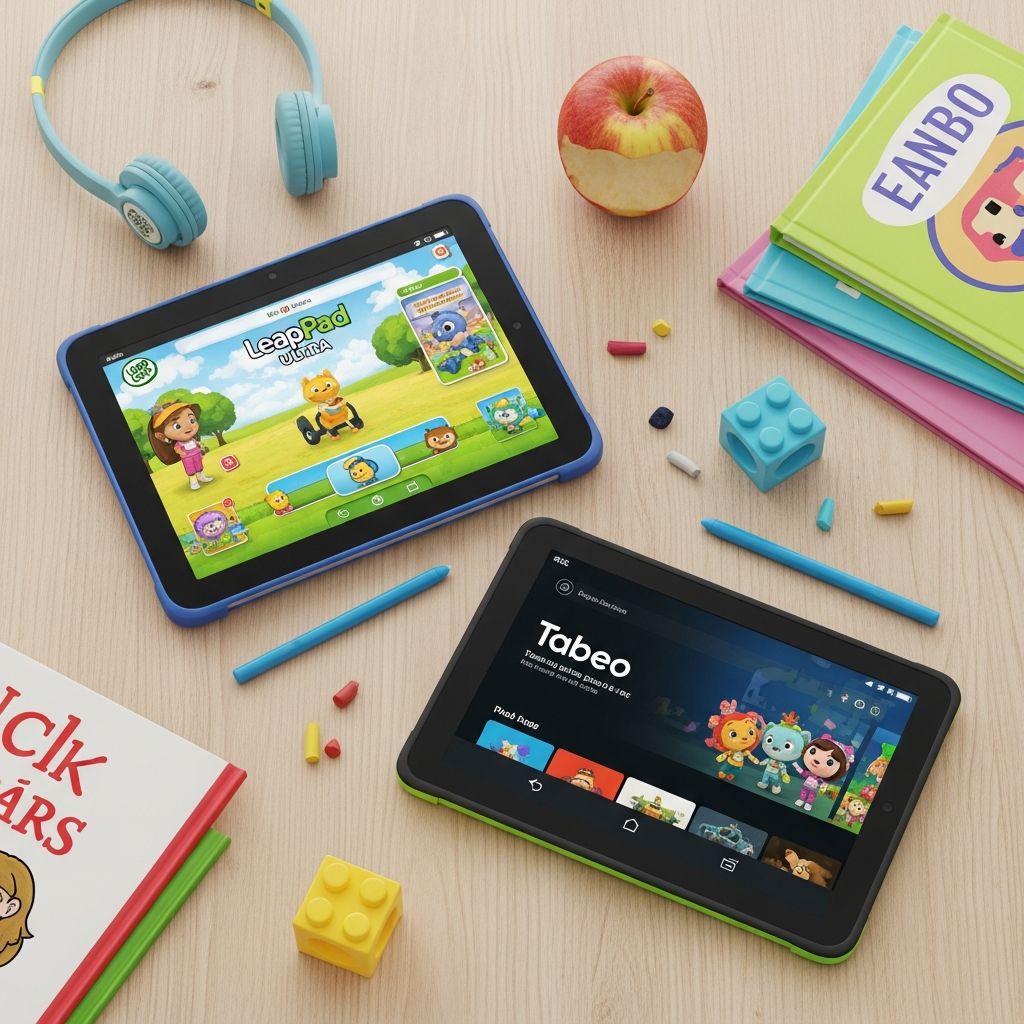
Shopping for a children’s tablet can feel overwhelming when every box promises “learning,” “fun,” and “safety” in big bold letters. Devices like the LeapPad Ultra and Android-based kids’ tablets similar to the Tabeo e2 look alike at a glance, yet they offer very different experiences for both kids and parents. This guide walks through the key differences so you can confidently choose a device that fits your child, your values, and your budget.
Understanding the Two Main Types of Kids’ Tablets
Most kid-oriented tablets fall into one of two broad categories. Recognizing which type you’re looking at makes every other decision easier.
Learning-Focused Systems (LeapPad-Style)
LeapPad-style devices are closed learning systems created specifically for children. They emphasize structured educational content, curated app libraries, and strong parental control out of the box.
- Curated content: Apps and games go through a vetting process and are usually tied to school skills such as reading, math, science, and problem-solving.
- Child-centric design: Big icons, simple navigation, and a sturdy shell make it easier for young children to use independently.
- Limited freedom: Since you can only install approved content, kids have far fewer chances to stumble onto questionable material.
Android Kids’ Tablets (Tabeo-Style)
Android-based kids’ tablets are essentially regular Android tablets with a child-friendly layer on top. They feel more like an adult tablet, but with guards and training wheels provided by the manufacturer or store brand.
- Open app ecosystem: Access to a broad app store means thousands of games, media apps, and learning tools.
- More entertainment options: Popular arcade-style games, streaming video apps, and music services are often available.
- Heavier setup burden: Parents need to actively configure parental controls and make judgment calls about which apps and features to allow.
Feature Breakdown: What Really Matters for Families
Technical spec sheets can be confusing and sometimes misleading for parents. Instead of fixating on processor speeds and obscure chip names, focus on how each feature affects daily life with kids.
Durability and Design for Small Hands
Children’s tablets live hard lives: drops from couches, sticky fingers, and journeys in crowded backpacks. Design choices can dramatically affect how long a tablet survives in a typical family home.
- Protective casing: Look for built-in bumpers, thick plastic shells, and rounded corners rather than sleek, slippery metal.
- Screen protection: A shatter-resistant or impact-resistant screen is preferable, and a good screen protector is a must if it is not included.
- Kid-sized ergonomics: A slightly thicker frame can actually help small hands grip the device securely.
Screen Size, Resolution, and Viewing Comfort
Screen quality affects reading comfort, artwork detail, and how easily siblings can share the tablet on a road trip. Bigger is not always better, but it can help for certain activities.
- Screen size: Around 7 inches is a common sweet spot for kids, offering enough space for drawing and e-books without becoming too heavy.
- Resolution: A sharper screen helps with picture books, comics, and detailed art apps, and generally leads to clearer text.
- Brightness and viewing angles: A reasonably bright display makes car and outdoor use more practical, while wide viewing angles help when two kids watch together.
Storage and Expansion
As your child installs more games, videos, and creative projects, storage space quickly fills up. Planning ahead can prevent future frustration.
- Built-in memory: A minimum of 8 GB is helpful for younger kids, but families who love to download videos and larger apps may want more.
- Expandable storage: A microSD card slot allows easy, inexpensive storage upgrades, especially useful on open Android devices.
- Cloud syncing: Some ecosystems offer online backup or syncing, which is useful if the tablet is lost or damaged.
Battery Life and Charging
Nothing ends a peaceful car ride faster than a low-battery warning. Real-world battery life and charging convenience matter more than lab numbers.
- Internal rechargeable battery: Built-in batteries with USB charging make it simple to plug in like a phone or adult tablet.
- Usage patterns: Learning apps can sometimes drain batteries more slowly than high-end 3D games and streaming video.
- Power accessories: Car chargers, docking stations, or extra cables are worth considering for frequent travelers.
Educational Value vs. Pure Entertainment
Every manufacturer advertises “learning,” but not all content is created equal. The real difference often lies in how structured, measurable, and intentional the learning experiences are.
What Learning-Focused Tablets Typically Offer
LeapPad-style tablets usually organize their libraries around school subjects and age bands. Parents can quickly locate reading-level-appropriate stories or math activities for a particular grade.
- Curriculum alignment: Many titles note which skills they reinforce, such as phonics, multiplication, or early science concepts.
- Progress tracking: Some systems allow parents to view basic progress reports or skill summaries to see where a child is thriving or struggling.
- Built-in creativity tools: Drawing studios, simple photo editing, and storytelling apps promote imaginative play, not just passive consumption.
What Android Kids’ Tablets Typically Offer
Tablets modeled after the Tabeo approach tend to shine in variety. While they may include a handful of learning apps, the center of gravity often tilts toward game-based fun.
- Popular game titles: Arcade-style and puzzle games beloved by older kids are commonly available, which boosts excitement but may reduce educational focus.
- Streaming and multimedia: Video, music, and comics apps open up a broad universe of entertainment content.
- Optional learning: Parents can download strong educational apps, but the onus is on the adult to curate and enforce a balanced mix.
Parental Controls and Online Safety
Internet access is both the biggest asset and the greatest concern with kids’ tablets. The right parental control tools allow children to explore while giving adults peace of mind.
Curated Browsers and Walled Gardens
Learning-focused devices often rely on a child-safe browser or a “walled garden” approach. Instead of the open internet, kids see only pre-approved, age-appropriate sites and videos.
- No open search bar: Children cannot type in arbitrary URLs or search for anything they want.
- Editorial curation: Content is chosen for safety and developmental value, not just popularity.
- Lower configuration burden: Parents do not have to build a custom filter list from scratch.
Advanced Controls on Android-Based Kids’ Tablets
Android kids’ tablets usually include more detailed, app-level parental controls that let adults tailor the device to each child in the family.
- Profile-based limits: Create individual child profiles with different game lists, allowed websites, and time quotas.
- Time management: Set daily limits, bedtime lockouts, or app-specific caps so a child cannot spend hours on a single game.
- Website filtering: Block whole categories such as explicit content or advertising-heavy sites, or whitelist only trusted destinations.
Cost Considerations Beyond the Price Tag
The sticker price rarely tells the full financial story. Consider both the immediate cost of the tablet and the long-term cost of building a content library that keeps your child engaged.
Upfront Price vs. Included Content
Some learning tablets cost a bit more but arrive with only a modest number of pre-loaded apps. Others may be slightly cheaper while including many more games and tools right away.
- Count the apps: Compare the number and type of included apps, especially educational versus purely entertaining titles.
- Content quality: A handful of well-designed, replayable learning games can be more valuable than dozens of shallow mini-games.
- Target age range: If your child is near the upper limit of the recommended ages, factor in how soon you might need to move to a more advanced device.
Ongoing App Purchases
In many ecosystems, new apps can cost more than parents initially expect, especially for branded learning cartridges or larger premium games.
- Per-app pricing: Learning systems may charge a higher price for each new app or game, so building a robust library is a gradual investment.
- Sales and bundles: Check whether the manufacturer offers seasonal sales, bundles, or subscription options that reduce long-term costs.
- Free-to-play pitfalls: Some Android games are free to download but heavily use in-app purchases and ads, so strong purchase controls are essential.
At a Glance: Learning Tablet vs. Android Kids’ Tablet
The table below summarizes typical strengths and trade-offs between a LeapPad-style learning tablet and a Tabeo-style Android kids’ tablet.
| Aspect | LeapPad-Style Learning Tablet | Tabeo-Style Android Kids’ Tablet |
|---|---|---|
| Primary Focus | Structured educational games, creativity, early literacy and numeracy | Broad entertainment with optional educational apps |
| Content Ecosystem | Closed, curated library of kid-safe titles | Open app store with many games and media apps |
| Parental Controls | Simpler, built-in limits and kid-safe browsing | More flexible, detailed settings but requires more configuration |
| Durability | Often more toy-like and rugged | Varies by model; may rely more on cases and covers |
| Appeal to Older Kids | Strong up to around pre-tween ages | Feels more like a “real” tablet, often preferred by older children |
| Total Cost Over Time | Higher per-app costs, predictable ecosystem | Many low-cost or free apps, but risk of in-app purchases and ads |
Which Tablet Fits Your Family?
Every child and household is different, so there is no single “best” tablet. Instead, think in terms of priorities and trade-offs to find the best match for your reality.
If Learning and Structure Come First
Families who want a tightly controlled, educational environment often gravitate toward LeapPad-style devices. These tablets simplify decision-making by offering only content that has already passed through a safety and quality filter.
- Ideal for younger children just starting with digital devices.
- Useful for parents who do not want to spend time vetting thousands of app options.
- Comforting for caregivers who are particularly concerned about online safety and advertising.
If Flexibility and Entertainment Matter Most
Families with tech-savvy kids or older siblings may prefer an Android kids’ tablet for its familiarity and flexibility. Children used to watching videos or playing popular games on a parent’s phone adjust easily to this environment.
- Good for households where kids will eventually graduate to a standard tablet or shared family device.
- Appealing when siblings share and need access to a wide variety of apps and games.
- Best for parents comfortable managing app permissions, time limits, and potentially complex settings.
Practical Setup Tips for Parents
Once you choose a tablet, a thoughtful setup process can significantly improve your child’s experience and reduce future headaches.
Day-One Setup Checklist
- Create separate user profiles for each child if supported, with age-appropriate apps and restrictions.
- Set a strong password or PIN for parental settings and purchases.
- Install or activate parental control tools and, if available, a kid-safe browser.
- Download a balanced mix of learning, creativity, and entertainment apps before handing the device over.
Establishing Healthy Tech Habits
Technology can support children’s growth when it is used intentionally. A few clear family guidelines can keep screen time enjoyable rather than overwhelming.
- Choose specific times for tablet use, such as after homework or on long trips.
- Encourage creative apps and reading before games and videos.
- Regularly sit with your child to explore new apps together and discuss what they are learning or enjoying.
Frequently Asked Questions
What age is appropriate for a first tablet?
Most kids’ tablets are designed for ages 3 and up, but readiness varies. Consider how well your child follows instructions, how rough they are with toys, and what you expect the device to do. Very young children may benefit more from short, supervised sessions than from having their own tablet all day.
Should siblings share one device or each have their own?
Sharing can teach cooperation, but it also leads to conflicts. If the tablet is mainly for travel or occasional use, one device with separate profiles might be sufficient. If multiple kids need it for long drives, quiet time, or educational practice, a second device may eventually be worth the investment.
Are kid-specific tablets better than simply child-proofing a regular tablet?
Using a standard tablet with robust parental controls and a durable case can work well for tech-savvy families. However, dedicated kids’ devices reduce complexity and risk, especially for younger children or adults who do not want to continuously manage app and web settings.
How do I keep my child from making accidental purchases?
Turn off one-tap buying wherever possible, require a password for all purchases, and disable or restrict in-app purchases. Learning-focused tablets usually avoid these pitfalls entirely, while Android tablets may require extra care in the settings menu and within each app store.
What if my child quickly outgrows the educational content?
Look for a device with a wide age range and add new, more advanced apps over time. If your child is already near the upper limit of the recommended age, an Android kids’ tablet or a carefully configured general-purpose tablet may offer a smoother path into more complex tools later.
Final Thoughts for Parents
Whether you lean toward a LeapPad-style learning system or a Tabeo-style Android kids’ tablet, the key is alignment with your family’s priorities. Think about how the device will actually be used day to day, what you hope your child gains from it, and how much time you are willing to spend managing settings and content. A well-chosen, thoughtfully set up tablet can become a powerful ally in keeping kids entertained, engaged, and learning—without adding unnecessary stress to your life.