
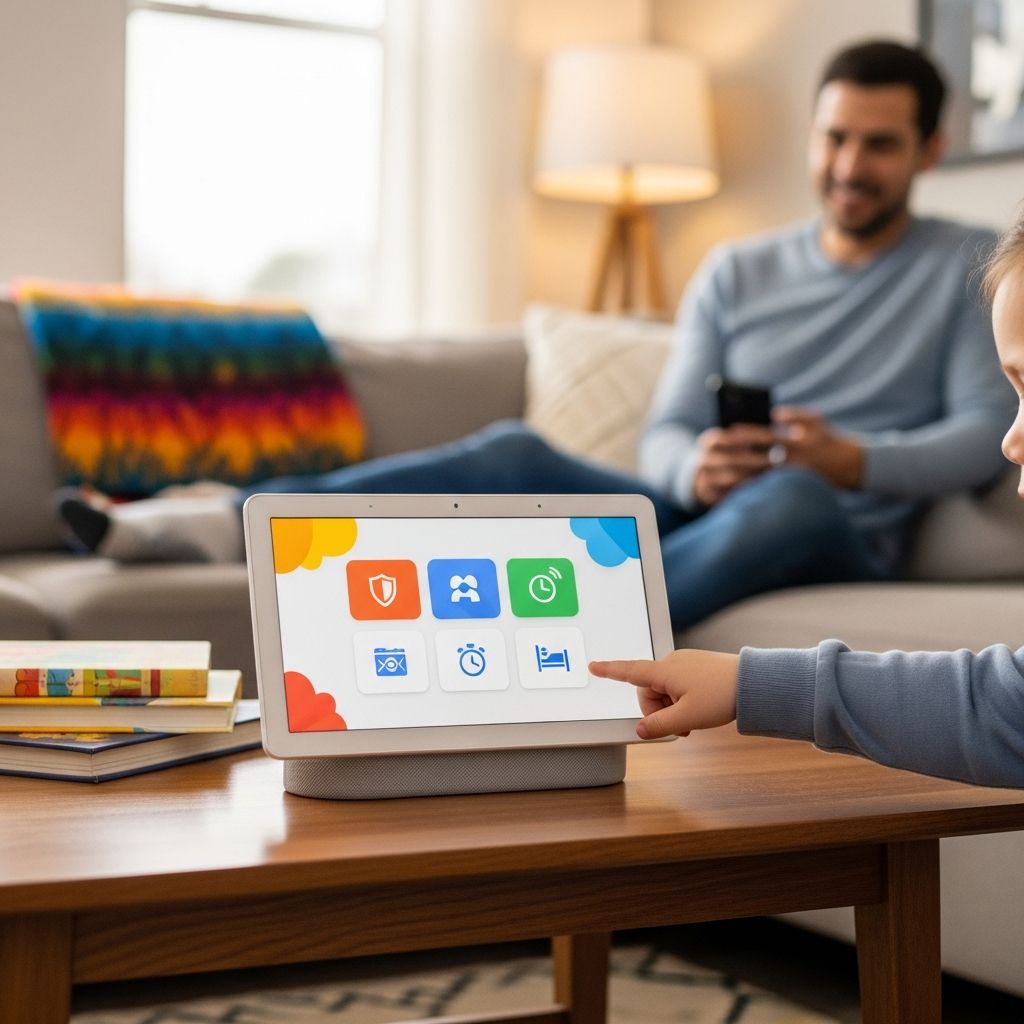
Google Assistant has become a staple in many households, powering smart speakers, displays, and mobile devices with voice-activated help. For parents, this convenience raises concerns about inappropriate content exposure for children. Fortunately, robust parental safeguards through Google Family Link and the Google Home app allow customization of experiences to suit family needs. These tools enable content filtering, usage limits, and voice recognition to ensure age-appropriate interactions across devices.
Why Parental Controls Matter in Smart Homes
Smart devices like Nest Hub or Google Home speakers respond instantly to queries, which can inadvertently deliver mature news, explicit music, or unsafe web suggestions to young ears. Parental controls address this by applying restrictions based on user identity via Voice Match technology. Once configured, the system recognizes children’s voices and enforces predefined limits, preventing access to restricted material while allowing educational and fun responses.
Recent developments underscore the importance of these features. In January 2026, Google faced criticism for emailing minors instructions on disabling supervision at age 13, prompting a swift policy reversal. Now, parental approval is mandatory for such changes, enhancing family oversight.
Core Components of Google Assistant Safeguards
Google’s system divides protections into key areas: content filters, downtime scheduling, and activity monitoring. These apply universally across Assistant-enabled hardware.
- Content Filters: Block explicit music lyrics, mature news, unsafe websites, and adult videos. Integration with YouTube Kids ensures video suggestions remain family-friendly.
- Downtime Schedules: Set quiet hours or daily limits, after which devices respond only to basic alarms or parent-approved commands.
- Voice Match: Differentiates family members, applying kid-specific rules automatically.
- Shopping and Interaction Limits: Prevent unauthorized purchases, calls to unknown numbers, or messages.
This multi-layered approach synchronizes settings across all linked devices, so a child cannot bypass limits by switching from a speaker to a tablet.
Device-Specific Safeguards
Different hardware requires tailored configurations, but core features remain consistent.
| Device Category | Key Safeguards | Setup Notes |
|---|---|---|
| Speakers (Google Home/Nest Mini) | Voice filtering, music/video blocks, downtime | Primary setup via Google Home app |
| Smart Displays (Nest Hub) | Screen content restrictions, YouTube Kids enforcement | Visual filters sync with Family Link |
| Mobile (Android Phones/Tablets) | App limits, Assistant query restrictions, location tracking | Managed through Family Link app |
| Chromebooks/Chromecast | Web SafeSearch, streaming controls | Account-level settings apply |
For optimal protection, enable Voice Match on every device. This trains Assistant to identify voices, triggering child profiles seamlessly.
Step-by-Step Setup Guide
Configuring safeguards begins with creating supervised accounts for children under 13 (or local consent age). Use the Family Link app for comprehensive management.
1. Install and Link Accounts
- Download Google Family Link from the Play Store or App Store on your device.
- Create a family group and add your child’s Google account (supervised for under-13s).
- Link devices via the Google Home app for smart home integration.
2. Activate Voice Match
In the Google Assistant app or Home app, navigate to settings > Voice Match. Have each family member, including children, record phrases. This enables personalized controls.
3. Customize Filters
- Music: Enable ‘No explicit content’ to filter lyrics.
- Web & Search: Turn on SafeSearch and block mature sites.
- Videos: Route to YouTube Kids; restrict regular YouTube.
- News: Disable for young profiles.
4. Set Downtime and Limits
Schedule bedtimes or daily caps (e.g., 1 hour). Usage tracks cumulatively across devices, alerting when limits near.
5. Monitor and Adjust
Family Link provides reports on app usage, queries, and location. Approve app downloads remotely and review activity logs regularly.
Advanced Features for Enhanced Safety
Beyond basics, parents can lock specific interactions. Block shopping suggestions to avoid impulse buys, restrict calls/messages to approved contacts, and enable location sharing for peace of mind.
For multi-child homes, create individual profiles with tailored limits—strict for younger kids, lenient for teens. Recent policy updates ensure teens cannot unilaterally end supervision; parents must approve, fostering ongoing dialogue.
Integration with other Google services amplifies protection: SafeSearch on Chrome, app approvals in Play Store, and YouTube restricted mode all reinforce Assistant safeguards.
Common Hurdles and Fixes
Parents often encounter setup glitches or inconsistent enforcement. Ensure all devices are on the latest firmware and accounts are properly supervised. If Voice Match fails, retrain in a quiet environment.
For cross-platform use (e.g., iOS), Family Link offers limited Android oversight but full web controls via browser extensions. Always verify settings propagate by testing child queries.
Policy Evolution and Family Empowerment
Google’s 2026 policy shift responded to parental backlash over autonomy emails to 13-year-olds. Now, explicit consent is required, aligning with advocacy for sustained protections. This change, announced by Google’s privacy head, prioritizes family consensus.
Experts emphasize combining tech tools with open conversations. While platforms evolve, parental vigilance remains key to digital well-being.
Frequently Asked Questions
Can I set unique controls for each child on Google Assistant?
Yes, Family Link supports multiple supervised accounts with individualized filters, limits, and schedules across shared devices via Voice Match.
How does downtime work on smart speakers?
During scheduled periods, speakers limit responses to alarms, timers, or parent voices, enforcing rest without full shutdown.
What happens when my child turns 13?
Supervision becomes optional, but post-2026 policy, parental approval is required to disable controls, preventing surprises.
Do these controls work on non-Google devices?
Assistant on Android/iOS respects Family Link limits; third-party speakers vary by integration level.
Can kids bypass Voice Match restrictions?
Voice models improve accuracy over time; regular retraining and monitoring minimize evasion.
Building a Safer Digital Future
Google Assistant parental safeguards empower families to harness smart tech confidently. By filtering content, limiting usage, and requiring oversight for changes, these tools mitigate risks while preserving utility. Regular reviews and updates keep protections current amid evolving policies and threats.
Combine with device passcodes, safe browsing habits, and family media rules for comprehensive safety. As technology advances, staying informed ensures children explore digitally responsibly.
References
- Google Assistant Parental Controls: Powerful & Positive 2026 Features — ImpulseC. 2026. https://impulsec.com/parental-control-software/google-assistant-parental-controls/
- Google Ends Policy Urging Teens to Remove Parental Controls — Newsmax. 2026-01-16. https://www.newsmax.com/us/google-teenagers-parental-controls/2026/01/16/id/1242447/
- Google accused of ‘grooming’ 13-year-old by telling them to ditch… — The Independent. 2026. https://www.the-independent.com/news/uk/home-news/google-online-safety-parental-controls-b2900619.html
- Google Backtracks on Teen Parental Controls After Public Backlash — Bitdefender HotForSecurity. 2026. https://www.bitdefender.com/en-us/blog/hotforsecurity/google-backtracks-on-teen-parental-controls-after-public-backlash
- How Do I Put Parental Controls on Google — Oreate AI Blog. 2026. https://www.oreateai.com/blog/how-do-i-put-parental-controls-on-google/34f7dda5a6d58d32272f0d09b24f894e
- Parental Controls – Google Families — Google Families. 2026. https://families.google/parental-controls